Nano Banana AI: Free 3D Figurines from Photos, Step-by-Step
Have you ever wished you could transform your favorite photos into amazing 3D figurines instantly and for free? Imagine turning a beloved picture of your pet or a cherished toy into a physical 3D model. Now, thanks to innovative artificial intelligence, this dream is a reality. In this comprehensive guide, we will thoroughly explore how to use Nano Banana AI, offering a simple, step-by-step guide and essential tips to create stunning 3D figurines from photos with remarkable ease.
Your Easy Guide to Creating 3D Figurines with Nano Banana AI
Creating intricate 3D models from photos might sound complicated, but with Nano Banana AI, the process is incredibly straightforward and surprisingly fast. This powerful web-based tool makes AI 3D generation accessible to everyone, allowing you to convert your 2D images into fully realized 3D objects with just a few clicks. Furthermore, it delivers these stunning results instantly and completely free of charge. Here’s a detailed walkthrough to help you get started:
- Access the Nano Banana AI Platform: First and foremost, you need to open your web browser and navigate to the official Nano Banana AI website. Since it’s a web-based service, there’s no software to download or install, making it incredibly convenient.
- Prepare Your Perfect Photo: Next, carefully select the 2D image you wish to transform into a 3D model. For the best results, remember these crucial tips:
- Focus on a Single Object: Nano Banana AI excels at converting individual subjects, such as a person, a pet, a statue, or a toy. Avoid photos with multiple main subjects or very cluttered backgrounds, as these can confuse the AI.
- Ensure Good Lighting: Bright, even lighting is absolutely essential. Shadows can obscure details, which in turn makes it harder for the AI to accurately define the object’s shape and depth.
- Choose a Clear Background: A plain or contrasting background helps the AI easily distinguish your desired object from its surroundings. This clear separation is vital for a clean 3D conversion.
- Opt for High Resolution: A higher quality image provides more data for the AI to work with, consequently leading to a more detailed and accurate 3D model.
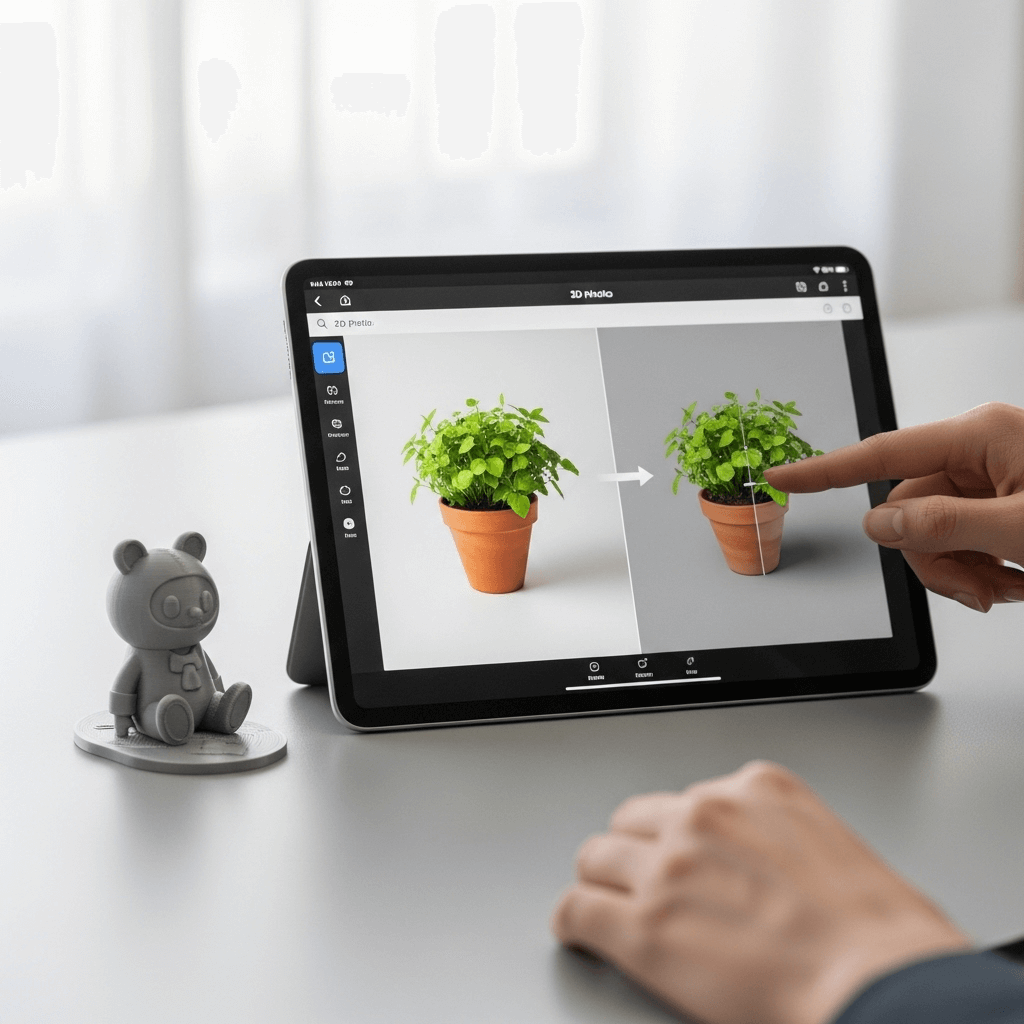
- Upload Your Image: Once you have selected your ideal photo, locate the “Upload Image” or similar button on the Nano Banana AI interface. Click it, then browse your computer or device to select and upload your chosen picture. The system will then begin processing the image.
- Generate Your 3D Model: As soon as your image is uploaded, Nano Banana AI gets to work. You won’t need to tweak complex settings; the AI processes the image using advanced algorithms to interpret its depth and form. Therefore, within moments, you will see a preview of your newly generated 3D figure. This “instant 3D conversion” is one of Nano Banana AI’s most impressive features.
- Download Your Creation: Finally, once you are satisfied with the preview, you can typically find a “Download” button. Clicking this will save your 3D model to your device, usually in a widely compatible format like an OBJ file. An OBJ file is a standard format that many 3D viewers and editing software can open, giving you flexibility for how you wish to use your new creation.
Maximizing Your Results: Essential Tips for Stunning 3D Conversions
While Nano Banana AI offers a simple solution for creating 3D models from photos, a few additional pointers can significantly enhance your outcomes. By following these expert tips, you will consistently achieve more detailed and impressive 3D figurines, truly showcasing the power of this free 3D converter.
- Experiment with Angles: Initially, try uploading photos from different angles of your subject. Sometimes, a slightly different perspective can provide the AI with better information, resulting in a more complete or accurate 3D representation.
- Understand AI Limitations: Although Nano Banana AI is powerful, it still has limitations. It may struggle with highly reflective surfaces, transparent objects, or very intricate, delicate structures that lack clear definition in a 2D image. Keeping your expectations realistic, therefore, helps you appreciate its capabilities within its intended scope.
- Consider Post-Processing: Once you download your OBJ file, you have the option to open it in free 3D viewing software (like MeshLab or online OBJ viewers) or even more advanced 3D modeling programs. Here, you can further refine your model, adjust textures, or even prepare it for 3D printing, adding another layer of creativity to your project.
- Troubleshoot Common Issues: If your initial 3D model doesn’t look quite right, do not despair. Oftentimes, the issue lies with the input image. Consider these troubleshooting steps:
- Try a different photo with better lighting or a simpler background.
- Ensure the subject is perfectly centered and clearly dominant in the frame.
- Avoid photos where parts of the object are cut off or obscured.
Harnessing the capabilities of Nano Banana AI truly opens up a world of creative possibilities, allowing anyone to effortlessly transform their 2D images into captivating 3D figurines. By following this guide and implementing our practical tips, you can consistently achieve stunning results, making this free AI 3D generator an invaluable tool for artists, hobbyists, and enthusiasts alike. So, start experimenting today and watch your photos come to life!
For more detailed information, please refer to the original source: Times of India